


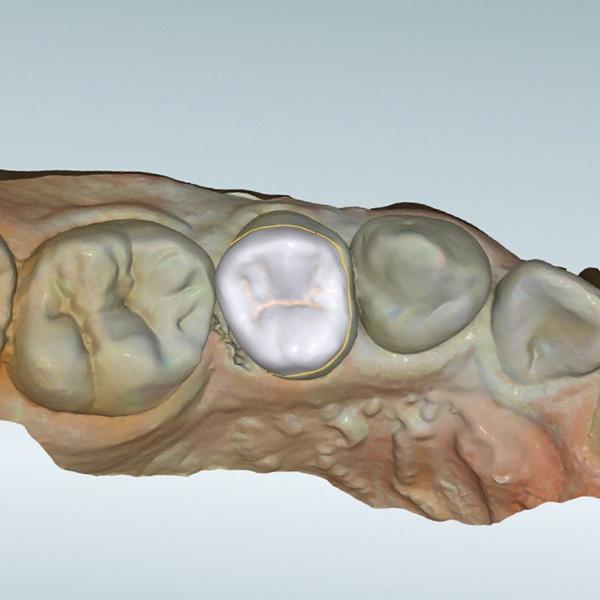
Digital dental workflows depend on the seamless transfer and interpretation of data between clinical systems and laboratory CAD environments. While scanning technology and CAD software have advanced significantly, file compatibility remains a frequent source of workflow disruption.
Article content
ToggleFrom a laboratory perspective, dental CAD file compatibility is not only a technical issue—it is a workflow variable that directly affects intake efficiency, design accuracy, and turnaround stability. When files are incompatible, incomplete, or altered during transfer, the entire workflow can be delayed or compromised.
This article examines the most common file compatibility issues in dental CAD workflows and explains how structured submission and validation processes can prevent them.
Why File Compatibility Matters in Digital Dental Workflows
In digital workflows, CAD design relies entirely on the integrity of incoming data. Unlike traditional workflows, there is no physical model to compensate for missing or distorted information.
When file compatibility issues occur:
- Data may be lost or altered during import
- Critical details such as margins or occlusion may be misinterpreted
- Cases may be delayed for correction or clarification
Effective dental CAD file compatibility ensures that data moves through the workflow without distortion or interruption.
File Format Inconsistency Across Systems
One of the most common compatibility challenges arises from differences in file formats.
Common Formats in Dental CAD
- STL (geometry only)
- PLY (geometry with color/texture)
- XML or proprietary formats (with metadata)
- DCM (DICOM-based data in certain workflows)
Compatibility Issues
- Some CAD systems do not support all formats
- Conversion between formats may remove critical data
- Color information may be lost when converting to STL
Workflow Impact
- Loss of margin visibility
- Reduced design accuracy
- Additional processing time for conversion
Prevention Strategy
- Confirm supported formats before submission
- Use native export formats where possible
- Avoid unnecessary file conversions
Data Loss During File Conversion
File conversion is a common step when transferring data between systems.
Risks of Conversion
- Reduction in mesh resolution
- Loss of color or texture data
- Introduction of geometric artifacts
Impact on CAD Design
- Margins may become less visible
- Surface accuracy may be compromised
- Design interpretation becomes less reliable
Workflow Implication
Repeated conversions increase the likelihood of cumulative data loss.
Prevention Strategy
- Minimize the number of conversions
- Use high-quality export settings
- Verify file integrity after conversion
Incomplete File Sets and Missing Data
Compatibility issues are not always format-related. Missing data is a major source of workflow disruption.
Common Missing Components
- Opposing arch (antagonist)
- Bite registration
- Full coverage of preparation area
Impact on Workflow
- CAD design cannot proceed accurately
- Cases must be paused for additional data
- Turnaround time is extended
Intake Validation Role
Structured workflows verify completeness at intake and pause incomplete cases.
Prevention Strategy
- Ensure all required files are included
- Follow defined submission protocols
- Verify completeness before sending
Mesh Integrity Issues
Even when files are present, their internal structure may be problematic.
Common Mesh Problems
- Holes or gaps in the mesh
- Overlapping or intersecting polygons
- Irregular triangulation
Impact on CAD Operations
- Difficulty in defining margins
- Errors in Boolean operations
- Instability during design adjustments
Workflow Consequence
Design time increases and accuracy decreases.
Prevention Strategy
- Use scanner software tools to check mesh integrity
- Repair mesh issues before submission
- Avoid exporting incomplete scan data
Scaling and Dimensional Inconsistencies
Incorrect scaling is a less visible but critical compatibility issue.
Causes of Scaling Errors
- Incorrect export settings
- Unit mismatches (mm vs inches)
- Software-specific scaling factors
Impact on Design
- Restorations do not fit correctly
- Internal spacing becomes inconsistent
- Manufacturing alignment is affected
Workflow Impact
Scaling errors often lead to remakes rather than simple adjustments.
Prevention Strategy
- Verify units during export
- Use consistent settings across systems
- Confirm scale accuracy before submission
Color Data Loss and Margin Visibility
Color data plays an important role in margin identification.
Issue with STL Files
- STL files do not retain color information
- Margins may be harder to distinguish
Impact on CAD Design
- Increased reliance on geometry alone
- Higher variability in margin definition
- Potential for inaccurate edge placement
Workflow Consideration
Using formats that retain color data (e.g., PLY) can improve margin clarity.
Prevention Strategy
- Use color-enabled formats when available
- Ensure that color data is preserved during export
File Corruption During Transfer
File transfer introduces another potential point of failure.
Causes of Corruption
- Interrupted uploads or downloads
- Compression errors
- Incompatible transfer platforms
Impact on Workflow
- Files cannot be opened or processed
- Data integrity is compromised
- Cases must be resubmitted
Prevention Strategy
- Use reliable file transfer systems
- Avoid excessive compression
- Verify file integrity after transfer
Software Version and Compatibility Conflicts
Different software versions may interpret files differently.
Common Issues
- Changes in file structure between versions
- Incompatibility with older CAD systems
- Differences in how geometry is processed
Impact on Design
- Unexpected behavior in CAD software
- Errors during import or processing
- Inconsistent design outcomes
Prevention Strategy
- Align software versions where possible
- Confirm compatibility before submission
- Use widely supported file formats
Naming and File Organization Errors
While not strictly technical, file organization affects compatibility in workflow processing.
Common Issues
- Ambiguous file names
- Mislabeling of scan types
- Missing identifiers
Workflow Impact
- Incorrect file usage during design
- Delays in case identification
- Increased risk of errors
Prevention Strategy
- Use consistent naming conventions
- Clearly label prep, antagonist, and bite files
- Include case identifiers
Communication Gaps and File Misinterpretation
File compatibility is closely linked to communication.
Common Communication Issues
- Lack of clarity on file contents
- Missing instructions for complex cases
- Unclear expectations for design
Impact on Workflow
- Files may be interpreted incorrectly
- Designers rely on assumptions
- Variability increases
Structured Communication
Defined submission protocols reduce ambiguity and support accurate file interpretation.
Intake Quality Control as a Compatibility Filter
The most effective way to manage dental CAD file compatibility is through structured intake validation.
Intake-Level Checks
- Verification of file format and compatibility
- Assessment of data completeness
- Identification of mesh and scaling issues
Workflow Impact
- Prevents incompatible files from entering design
- Reduces mid-process interruptions
- Improves turnaround predictability
How Compatibility Issues Affect Turnaround Time
File compatibility issues are a major source of delay.
Direct Effects
- Time spent resolving file problems
- Additional communication cycles
- Re-submission of corrected files
Indirect Effects
- Disruption of design workflow
- Increased queue variability
- Reduced overall efficiency
Key Insight
Managing compatibility at intake is more efficient than correcting issues during design.
Building a Reliable File Submission Protocol
To minimize compatibility issues, workflows should include:
Standardized Requirements
- Accepted file formats
- Required scan components
- Defined export settings
Verification Steps
- Check file integrity before submission
- Confirm completeness of data
- Validate naming and organization
Feedback Integration
- Identify recurring issues
- Update submission guidelines
- Improve consistency over time
Conclusion: Compatibility as a Workflow Control Point
Dental CAD file compatibility is a critical factor in maintaining efficient and accurate digital workflows. Compatibility issues do not exist in isolation—they affect intake, design, production, and overall workflow stability.
By standardizing file formats, preserving data integrity, validating submissions at intake, and maintaining clear communication, laboratories and clinics can reduce delays, improve design accuracy, and achieve more predictable outcomes.
In digital dental workflows, compatibility is not just about whether files can be opened. It is about ensuring that data can be interpreted accurately and processed consistently from start to finish.